Tutorial 6 of 6
The measurement notebook — exports, Drive and shared notebooks
Beginner 7 min
Save measurements to a notebook, re-analyse them, export CSV, GPX and JSON, use Google Drive and share notebooks with a team.
Every Pocketlab instrument can save what it measured to the notebook — the column on the right (below the instrument on a phone). A notebook is the Pocketlab project: one file with your notes and a list of measurements.
Save measurements
Measure something and press Save to notebook (Ctrl+Enter). Each measurement becomes a card with its title, the instrument, the time and the first numbers of its summary. Notes for the whole notebook go into Notes at the top: where you measured, with which phone, what you changed.
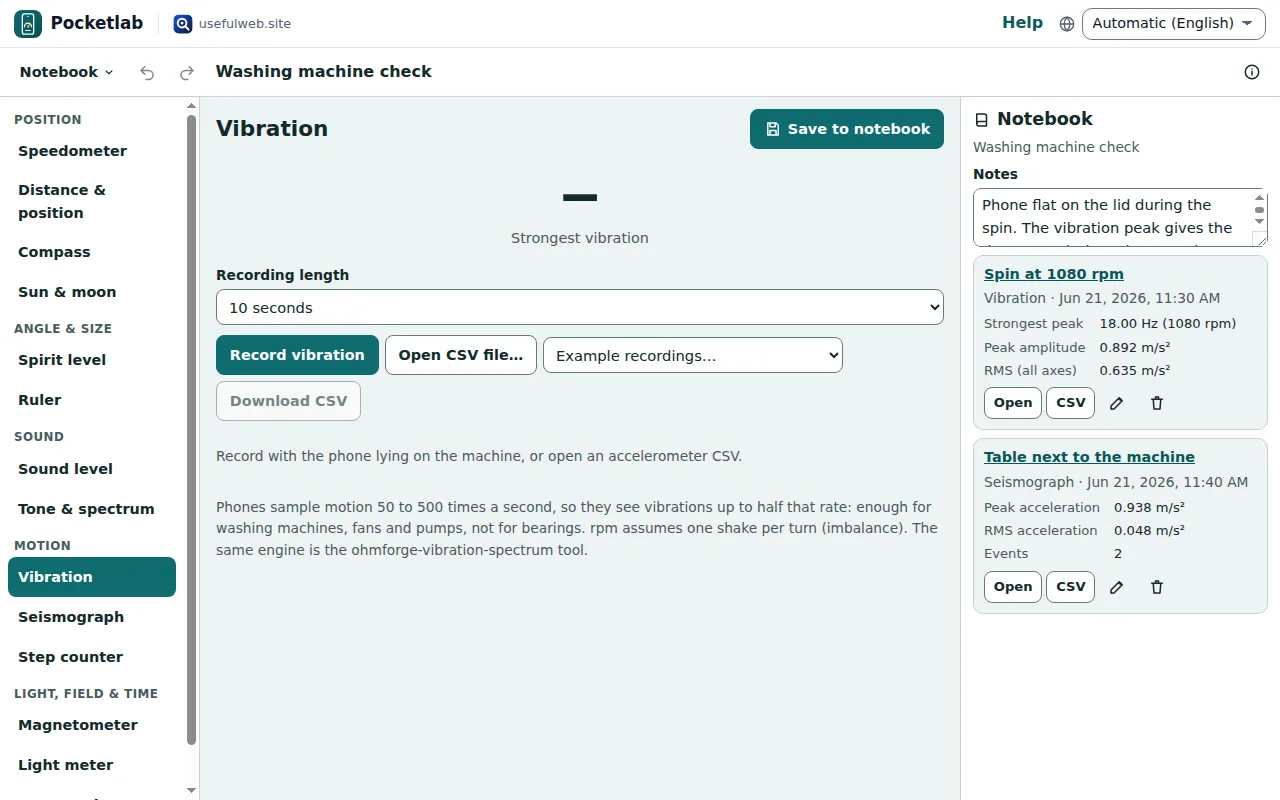
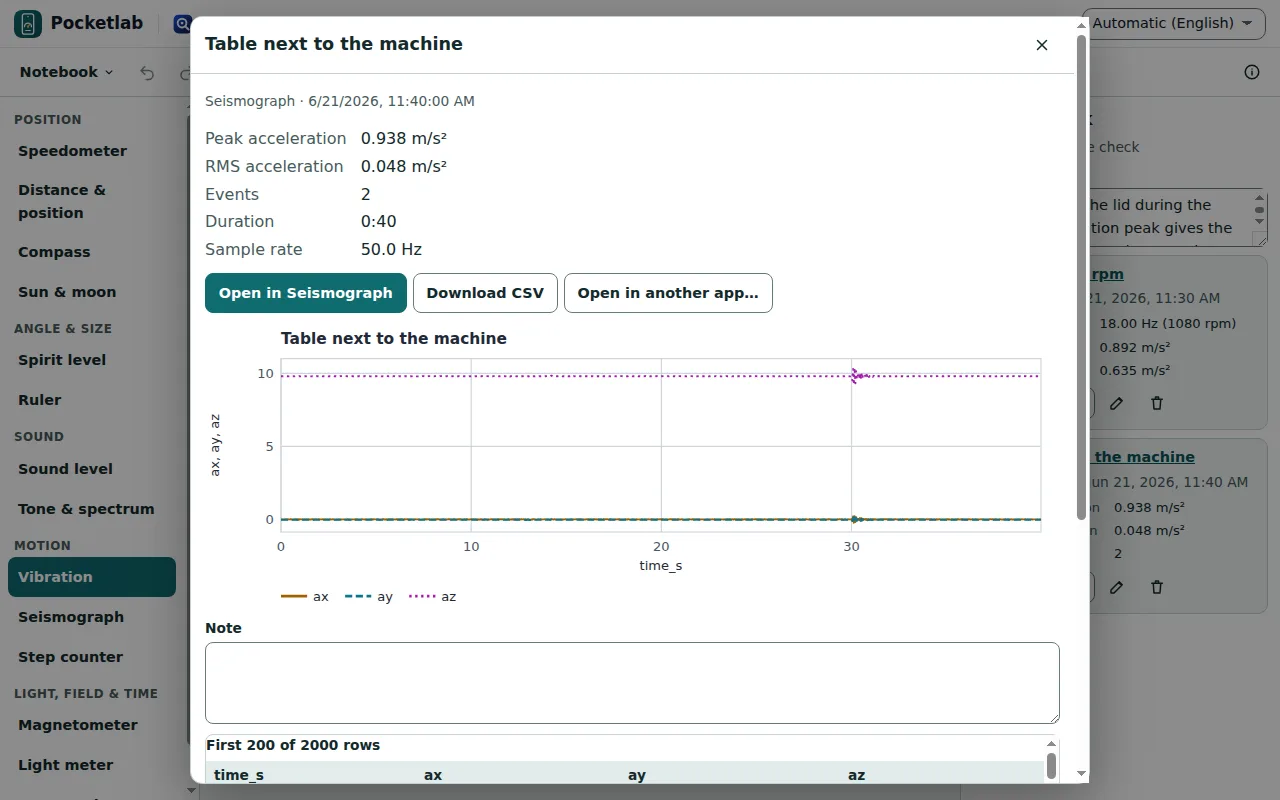
Open shows the whole measurement: the summary, a chart where the table has a time column, a note for this measurement and the first 200 rows of the table. Open in … loads trips, sound logs and accelerometer recordings back into their instrument, so you can re-analyse them with other settings.
Rename a measurement with the pencil and delete it with the bin. Undo and Redo (Ctrl+Z, Ctrl+Shift+Z) work for every notebook change.
Templates
Notebook → Templates… opens five ready-made notebooks: a morning bike ride, a washing machine check, a walk with steps, shelves and desk light, and a noise diary. They are real measurements from the example recordings, so you can try every instrument and export without sensors.
Export
- CSV on every card: the measurement's table. Accelerometer recordings are written exactly as the vibration meter downloads them (
time_s,ax,ay,az), so the tools read them. - GPX on trips and walked distances: a standard track for sports apps and map tools.
- Notebook → Save file (Ctrl+S): the whole notebook as
.pocketlab.json. Open file… (Ctrl+O) reads it again, Copy notebook link… packs it into a link. - Open in another app… in a measurement hands its table to another usefulweb app, for example a spreadsheet or chart app.
Print notebook prints the notebook column with all measurement cards.
Google Drive and shared notebooks
Signed in with a usefulweb account and Google Drive connected, the top bar offers Save to Drive, Open from Drive and Auto-save to Drive.
With Notebook → Save to workspace a notebook moves into a team workspace. Members add measurements from their own phones — the whole class measures the noise in the corridor, the club logs its rides — viewers can read and export, and changes arrive live. Recordings are saved inside the notebook, so very long recordings make it large; the sensors themselves never stream anything to the server.
Without an account everything stays in this browser. Notebook → Recent notebooks… lists what is saved here, and Bundlekeep can back it up.
Ready to try it?